
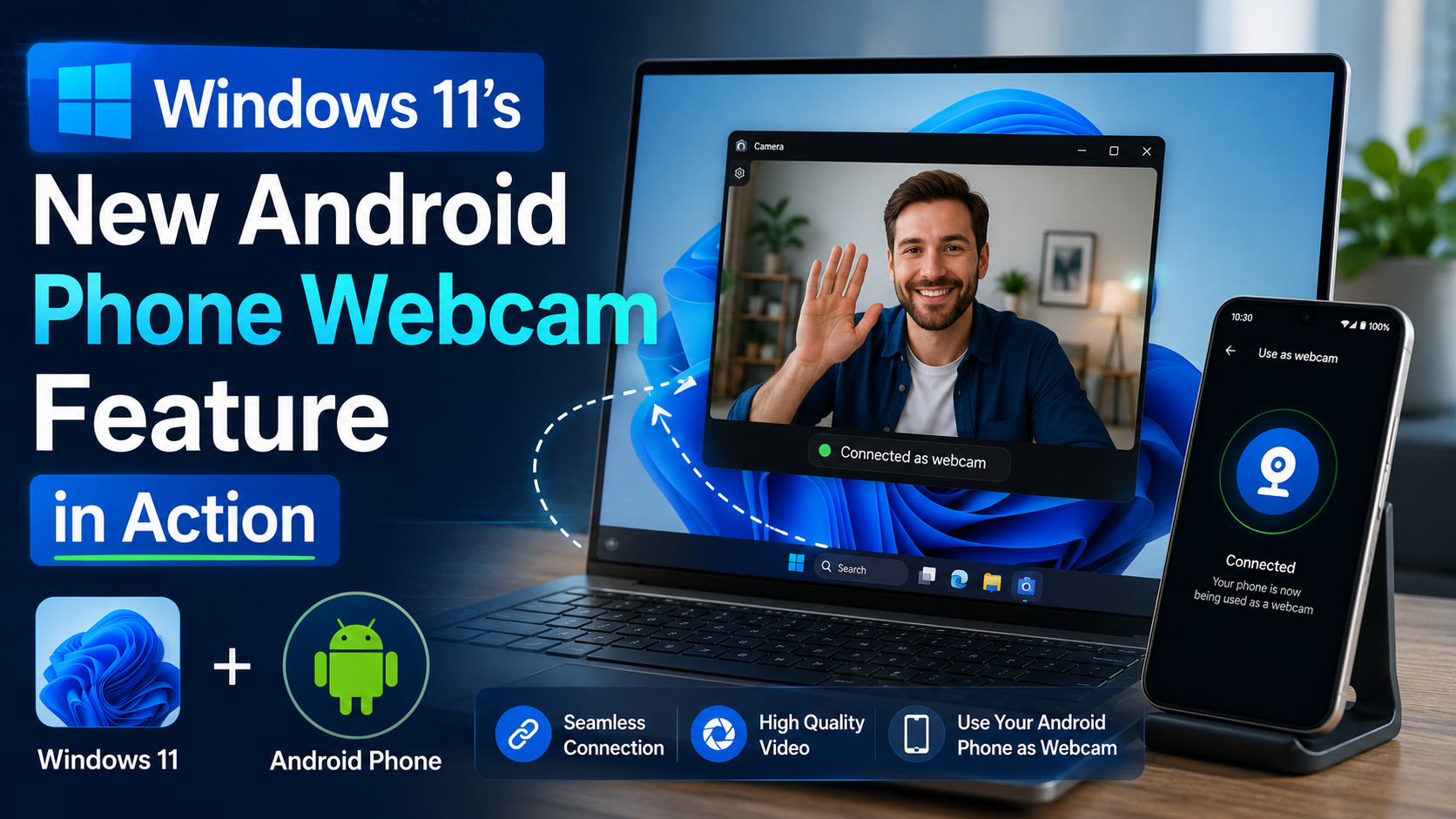
Overview
Windows 11 Turns Your Android Phone Into a Webcam
And that's the whole pitch. You connect your android phone to a Windows 11 PC, choose the phone camera as the video source, and suddenly your meetings look cleaner. More natural lighting. Better framing. Less potato-cam energy. Frankly, that's enough for a lot of people.
What I've noticed is that the best part isn't resolution alone. It's control. A phone lets you move it up, tilt it, and point it at your face from a sane angle. A laptop webcam is stuck in the worst possible place: low, crooked, and too often aimed straight up your nose. Not flattering. Not even close.
This feature matters most for remote workers, students, streamers, and anyone who takes a lot of video calls. And it can save money too. Why buy a separate external webcam when the phone in your pocket already does 4K video and decent low-light work? That question lands differently in 2024 than it did five years ago.
But the idea isn't magic, and it isn't for everyone. In my experience, the setup quality depends on the details. If your phone battery is low, if your Wi‑Fi is shaky, or if the mounting position is dumb, the whole thing starts to feel like a clever demo instead of a daily tool. I've seen people prop their phone against a mug, then complain the angle looks weird. Well, yes.
The feature also fits into a bigger microsoft ecosystem move. Windows has been trying to make the PC and phone feel less like separate islands and more like one messy but useful team. That's the real story here. Not the headline. Not the hype. The boring, valuable glue.
And there's a little contrarian truth here: some people don't need this at all. If your laptop already has a solid 1080p camera, you may not feel a huge jump. If you mostly use audio calls, this could be overkill. But for a lot of users, especially those on older laptops, the improvement is obvious the second the call starts. You look like you planned ahead.
A tiny anecdote. I once joined a long client call from a hotel room using a phone perched on a stack of books. The built-in webcam on the laptop would've made me look like I was calling from a bunker. The phone setup? Clean, stable, almost annoyingly professional. That kind of upgrade changes how you show up. And yes, people notice.
You also get some interesting side benefits. The phone camera often handles portrait-style framing better. It can adapt faster to movement. And depending on the implementation, switching between front and rear cameras may be easier than on a standard webcam. Handy. Very handy.
Still, setup matters. You don't want cable clutter, you don't want the phone sliding around, and you definitely don't want notifications popping up mid-call. Put the phone on silent. Charge it. Test the angle. Simple stuff, but that's usually what separates smooth from annoying.
So the feature isn't just a gimmick. It's a practical bridge between devices people already own. And if Microsoft keeps polishing device integration like this, Windows 11 starts feeling less like an operating system and more like a useful habit. Wouldn't that be the nicer surprise?
✅ Advantages
Here Is Windows 11s New Android Phone Webcam Feature In Action, and the upsides are easy to see. You get a much better camera without buying more gear. The image is usually sharper, the framing is easier to control, and the phone can sit at a more flattering height than a laptop screen.
And there's a money angle. A decent webcam setup can cost real cash, while many people already own a strong smartphone camera. What I've noticed is that this kind of reuse feels smarter than shopping for another gadget just because meetings got boring.
It also helps with flexibility. Move the phone. Tilt it. Switch rooms. Take a call from a kitchen table on a Friday afternoon. Simple. Fast. When it works, it feels almost invisible, and that's the best compliment software can get.
⚠️ Disadvantages
Here Is Windows 11s New Android Phone Webcam Feature In Action, but it's not pure magic. The biggest annoyance is reliability. If the connection drops, the call gets awkward fast. And if your phone is already doing a hundred things, battery drain can become the villain in the room.
Frankly, the setup can also feel fussy. You may need a stand, cable, or app pairing step that takes longer than you'd like. Not everyone wants to troubleshoot on a Monday morning.
There's also a privacy wrinkle. Your phone camera is now tied to your PC workflow, so notifications, incoming calls, and background alerts can interrupt you at the worst moment. And if your laptop webcam is already decent, the improvement might not justify the hassle. Sometimes the old boring option wins.
How to Get Started
1. Check that your windows 11 PC and android phone are compatible with the feature.
2. Make sure both devices are signed in and connected the way the setup requires.
3. Open the camera or device-linking option on the PC.
4. Keep the phone charged, unlocked, and positioned on a stand or stable surface.
5. Select the phone as your video source in the app you use for calls.
6. Test framing, lighting, and audio before the real meeting starts.
7. Silence notifications. Seriously. That one matters.
What I've found is that a two-minute test saves a lot of awkwardness later.
Frequently Asked Questions
Can any Android phone work? Not always. Compatibility depends on the specific Windows and phone features available.
Do you need extra hardware? Usually not, though a stand or mount helps a lot. A phone leaning against a book is fine for a quick test, not for a polished call.
Is it better than a regular webcam? Often, yes. But laptop cameras and dedicated webcams can still be enough for casual use.
Will it drain battery? Yes, it can. Keep the phone plugged in if you're on a long call.
Does it work for streaming too? In some setups, yes, but you'd want to test stability first. Microsoft keeps pushing tighter phone-to-pc integration, so the experience may keep changing.
Final Thoughts
And while it's not flawless, it solves a real problem for a lot of people with weak built-in cameras. In my experience, that matters more than flashy specs. If Microsoft keeps refining the setup, this could become one of those quiet features people rely on every day. Small thing. Big difference.