• Privacy Policy
  • Contact us
  • Terms
Magazine X Time
  • Home
  • News
  • Tech
  • Lifestyle
  • All Magazines
No Result
View All Result
Magazine X Time
  • Home
  • News
  • Tech
  • Lifestyle
  • All Magazines
No Result
View All Result
Magazine X Time
No Result
View All Result
Home Tech

How to Turn Glyph Lights On or Off on Nothing Phones Fast

Magazine X Time by Magazine X Time
July 23, 2026
in Tech
0 0
0
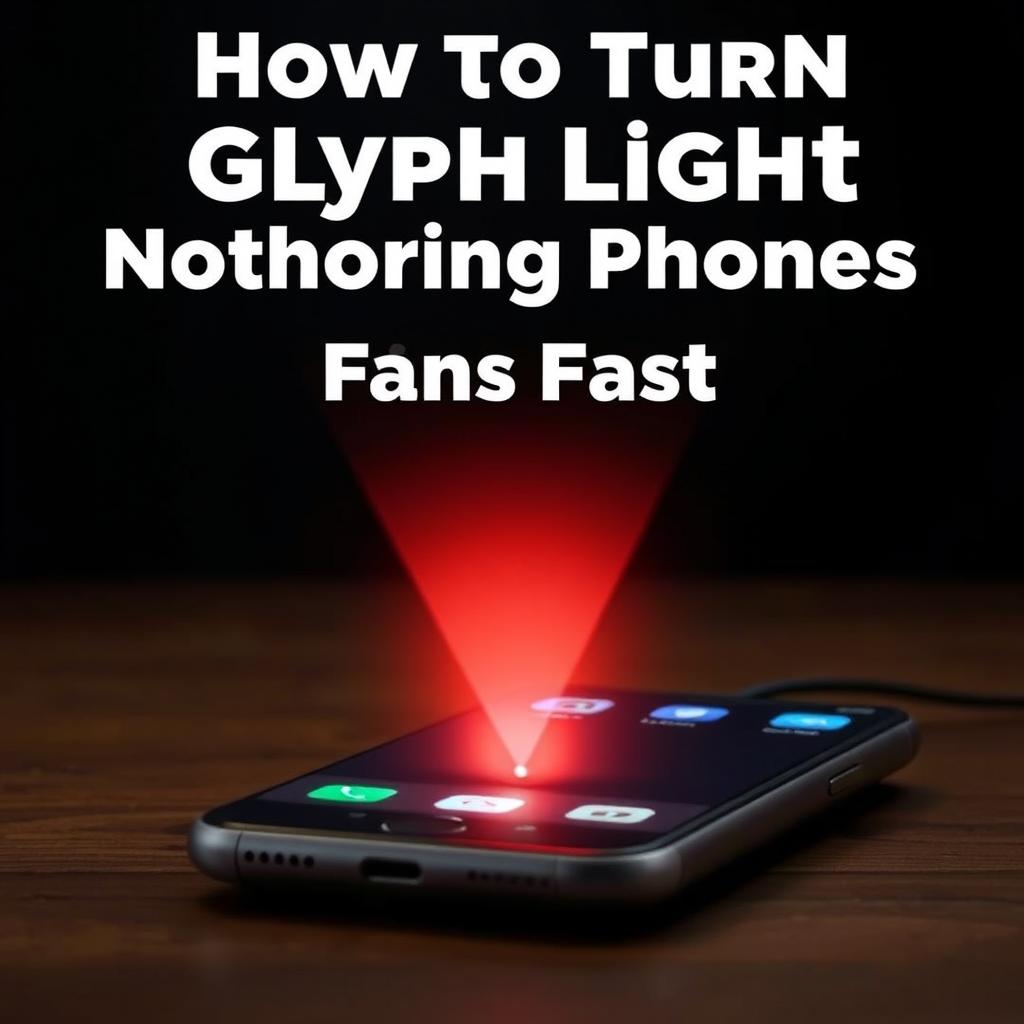
How to Turn Glyph Lights On or Off on Nothing Phones Fast
ADVERTISEMENT
How To Turn Glyph Lights On Or Off On Nothing Phones is simple once you know where Nothing hides the controls. You can switch the glyph lights on, off, or set them to behave differently for calls and notifications. Honestly, the first time I used a Nothing phone, I missed the setting completely. It's tucked away. This guide shows the quick path, what each option does, and a few smart tweaks that save battery and reduce distractions. If you've ever wanted your phone to feel calmer, this is a good place to start, with Nothing built-in features doing the heavy lifting.

Overview

Turning glyph lights on or off on a Nothing phone takes just a few taps in quick settings or the sound and notification menus. You can also control specific behaviors like ringtones, charging feedback, and silent alerts. What I've noticed is that most people only need one setup change, then they never touch it again. If you're trying to cut distractions or save a bit of battery, start there.

Simple steps for Glyph lights on Nothing phones

How To Turn Glyph Lights On Or Off On Nothing Phones starts with the same basic idea on most models, find the Nothing settings tied to the rear light system, then choose what you want it to do. The exact labels can shift a little between Nothing OS versions, but the path is usually close enough that you won't get lost. And once you see it, it feels obvious.

Open settings on your Nothing phone. Then look for Sound and vibration, Glyph Interface, or a similar menu. That menu is the control room. In my experience, people expect a big switch on the home screen, but Nothing keeps it inside the system settings where it can handle more than one light pattern.

If you're only trying to turn the lights fully off, the easiest move is to disable the main Glyph Interface feature or switch off the specific alert options inside it. That can stop notification flashes, ringtone pulses, and charging effects. But don't rush past the sub-options. Some owners want the lights off for calls, yet still like the charging animation. Separate controls make that possible.

And if you want the lights on, turn the main feature back on, then choose which events trigger them. You might enable incoming calls, silent notifications, or music visual effects. That's the nice part. You're not stuck with one rigid setting. You can keep just one or two cues if the bright flashes feel like too much at night.

What I've noticed is that people often confuse "off" with "silent." They're not the same. Silent mode can stop sound while notification alerts still use the Glyph LEDs. So if your phone keeps lighting up, check both places. Settings can overlap, and that overlap is where the annoyance lives.

A quick real-world example: a friend of mine kept his Nothing Phone beside his bed and complained about constant light bursts at 1 a.m. He didn't need to kill every feature. He just turned off call alerts and left charging effects on. Sleep improved that same night. Small change, big win. Why fight the phone when a two-minute fix does the job?

Here's the typical path, broken down in plain English. Open Settings, go to Sound and vibration, then look for Glyph Interface or Glyph lights. Inside, toggle the main switch or fine-tune individual options. If your model has a dedicated ringtone settings page, check that too, because some Glyph behaviors are linked there.

You can also use the quick settings shade on some versions of Nothing OS, but that depends on the software build. Frankly, I prefer the full settings page because it shows every option at once. Quick toggles are handy, but they're easy to forget later. A menu you can read is better than a switch you tap blindly.

If the lights don't seem to change, restart the phone after adjusting the setting. That's boring advice, sure, but it helps when the UI lags or the change doesn't apply right away. Also check that Battery Saver isn't limiting background behavior if you're testing notification patterns. Not glamorous. Still useful.

There are a few settings worth testing one by one. First, incoming calls. Second, charging effects. Third, notification alerts from selected apps. And if your Nothing phone supports Android notification channels, app-level settings can override your phone-wide choice. That's where people get stuck, because the app says one thing and the phone says another.

My advice is to start with one clean baseline. Turn everything off, then re-enable only the light cues you actually want. You may find that a single charging pulse is enough, while notification flashes just add noise. Or maybe you're the opposite. I know one builder who kept call alerts on because he could spot a missed call from across a workshop. Different life, different setup.

If you're using your phone in meetings, at the gym, or during late-night work, Glyph control can be a nice little quality-of-life tweak. Not flashy. Not life-changing. Just practical. And sometimes practical is the whole point. Do you want attention, or do you want control?

✅ Advantages

Turning glyph lights on or off gives you real control over how your Nothing phone behaves. You can cut visual noise during sleep, keep useful alerts for calls, or leave just the charging pulse on. That's a cleaner setup than relying on sound alone. In my experience, the best part is how fast it’s once you've found the menu. And because the controls are split into small options, you don't have to lose every feature just to quiet the phone. If you're sensitive to notifications, that's a welcome trade.

⚠️ Disadvantages

The settings aren't always obvious, and that can be frustrating. Nothing OS hides the controls inside menus that don't shout their purpose, so first-time users may poke around for a minute or two. And some behaviors overlap with silent mode, app notifications, or battery options, which makes troubleshooting messy. Frankly, that can feel overcomplicated for what should be a simple toggle. Also, if you like a phone that makes its features visible right away, the Glyph system may seem a bit too niche at first.

How to Get Started

1. Open settings on your Nothing phone. 2. Tap Sound and vibration, then find Glyph Interface or Glyph lights. 3. Turn the main Glyph switch on or off, depending on what you want. 4. If needed, open the sub-options and choose calls, notifications, charging, or music effects separately. 5. Test the change with a call or charger. 6. If the result looks wrong, check app notification settings and restart the phone. 7. Keep only the features you actually use. That part matters more than the rest, honestly.

Frequently Asked Questions

Q: Where do I find the Glyph controls?
A: Usually in Settings under Sound and vibration, then Glyph Interface or a similar label. On some models, the wording changes slightly.

Q: Why are the lights still flashing after I turned them off?
A: Check app notification settings and silent mode. One of them may still be triggering notification alerts.

Q: Can I keep Glyph lights on for calls only?
A: Yes, most Nothing phones let you toggle features separately, so you can keep one cue and disable the rest.

Q: Do Glyph lights affect battery life?
A: A little, yes, but the bigger reason people turn them off is distraction. If you don't need them, there's no harm in keeping them minimal. Have you tried a partial setup yet?



Final Thoughts

Once you know the menu path, How To Turn Glyph Lights On Or Off On Nothing Phones stops being a puzzle and starts being a quick habit. And the best setup is usually the one that matches your routine, not the one with the most features. Try one change first, then live with it for a day. If it feels better, keep it. If not, adjust again. Simple. The phone should fit your day, not hijack it.

Like this:

Like Loading…
Previous Post

5 More Flights to Bring Back British Nationals to London: X Time

Magazine X Time

Magazine X Time

Shakil Ahamed — founder of Magazine X Time. Writing about technology, productivity tools, and how-to guides. Knowledge is power; read, build, share.

Leave a Reply Cancel reply

Your email address will not be published. Required fields are marked *

I agree to the Terms & Conditions and Privacy Policy.

  • Trending
  • Comments
  • Latest
Top 9 Highest Paid Athletes In The World

Top 10 Highest Paid Athletes In The World In 2022

February 3, 2022
5 Best Adsense Optimized WordPress Themes Free 2022

5 Best Adsense Optimized WordPress Themes Free 2022

January 31, 2022
20 Health Tips For Healthy Living In 2022

20 Health Tips For Healthy Living In 2022

January 31, 2022
The-Devil-Wears-Prada

Reviving fondness of vogue through reading

June 5, 2026
10 Richest People in the World (2022)

10 Richest People in the World (2022)

6
The-Devil-Wears-Prada

Reviving fondness of vogue through reading

3
20 Health Tips For Healthy Living In 2022

20 Health Tips For Healthy Living In 2022

3
10 Inspirational Technology Quotes

10 Inspirational Technology Quotes

3
5 More Flights to Bring Back British Nationals to London: X Time

5 More Flights to Bring Back British Nationals to London: X Time

July 22, 2026
NYT Connections Hints and Answers for February 22, 2024

NYT Connections Hints and Answers for February 22, 2024

July 21, 2026
Streaming Prices Keep Rising? How to Manage Your Subscriptions

Streaming Prices Keep Rising? How to Manage Your Subscriptions

July 20, 2026
Is It Time for a Surgeon General Report on Vaping?

Is It Time for a Surgeon General Report on Vaping?

July 19, 2026

Recent News

5 More Flights to Bring Back British Nationals to London: X Time

5 More Flights to Bring Back British Nationals to London: X Time

July 22, 2026
NYT Connections Hints and Answers for February 22, 2024

NYT Connections Hints and Answers for February 22, 2024

July 21, 2026
Streaming Prices Keep Rising? How to Manage Your Subscriptions

Streaming Prices Keep Rising? How to Manage Your Subscriptions

July 20, 2026
Is It Time for a Surgeon General Report on Vaping?

Is It Time for a Surgeon General Report on Vaping?

July 19, 2026
magazine x time

Welcome to Magazine X Time. You can find the latest news and web-related posts here. Knowledge is Power and reading book is more good for gain knowledge. You can use this like book as well

Follow Us

Browse by Category

  • Apps
  • Artificial Intelligence
  • Business
  • Freelancing
  • Gadget
  • Games
  • Health
  • Lifestyle
  • Mobile
  • Motivational
  • News
  • Science
  • Startup
  • Tech
  • Tips
  • Web
  • WordPress
  • World

Recent News

5 More Flights to Bring Back British Nationals to London: X Time

5 More Flights to Bring Back British Nationals to London: X Time

July 22, 2026
NYT Connections Hints and Answers for February 22, 2024

NYT Connections Hints and Answers for February 22, 2024

July 21, 2026
  • Privacy Policy
  • Contact us
  • Terms

All rights reserved © 2026 Magazine X Time · Built by Shakvaro

Welcome Back!

Login to your account below

Forgotten Password?

Retrieve your password

Please enter your username or email address to reset your password.

Log In
No Result
View All Result
  • Home
  • News
  • Tech
  • Lifestyle
  • All Magazines

All rights reserved © 2026 Magazine X Time · Built by Shakvaro

This website uses cookies. By continuing to use this website you are giving consent to cookies being used. Visit our Privacy and Cookie Policy.
%d